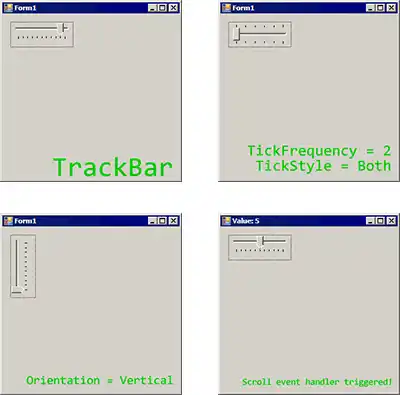
TrackBar. This provides a slider control. It allows the user to select a value from the slider by dragging on it. We change many aspects of the TrackBar, including its orientation and appearance.
Value property. With the trackbar, we can access the Value property to get a result from the user interaction. We can then use this value elsewhere in the program.
To begin, let's add a TrackBar control. An important event handler on the TrackBar control is the Scroll event handler. To create the Scroll event handler, you can double-click on the TrackBar.
Tip In the body of the method trackBar1_Scroll, you can mutate other properties in your program based on the Value property of the TrackBar.
Here In this program, we change the window title bar whenever the TrackBar is scrolled.
using System;
using System.Windows.Forms;
namespace WindowsFormsApplication6
{
public partial class Form1 : Form
{
public Form1()
{
InitializeComponent();
}
private void trackBar1_Scroll(object sender, EventArgs e)
{
// Set the window title text each time a scroll occurs.
this.Text = "Value: " + trackBar1.Value;
}
}
}
Vertical, Horizontal. You may want to use a vertical TrackBar instead of a horizontal TrackBar. You can change the Orientation property to Vertical instead of the default, which is Horizontal.
LargeChange, SmallChange. LargeChange is number of steps taken when the page up or page down keys are pressed, and also when the user clicks where the slider is not located.
Detail This meanwhile determines how far the slider moves when the user presses up or down on the keyboard.
Minimum, Maximum. When you change Minimum and Maximum, the dimensions of the TrackBar will not change. However, the scale of the numbers and ticks will.
Note The TrackBar will simply resize its scale to suit the Minimum and Maximum you choose.
Ticks. The TrackBar also allows you to change how its tick marks are styled, and how many tick marks are drawn for the total TrackBar scale.
Summary. The TrackBar can be valuable in some programs. It is a versatile and configurable control and fits well with the concept of Windows Forms as a framework.
Dot Net Perls is a collection of tested code examples. Pages are continually updated to stay current, with code correctness a top priority.
Sam Allen is passionate about computer languages. In the past, his work has been recommended by Apple and Microsoft and he has studied computers at a selective university in the United States.
This page was last updated on Sep 25, 2022 (edit).