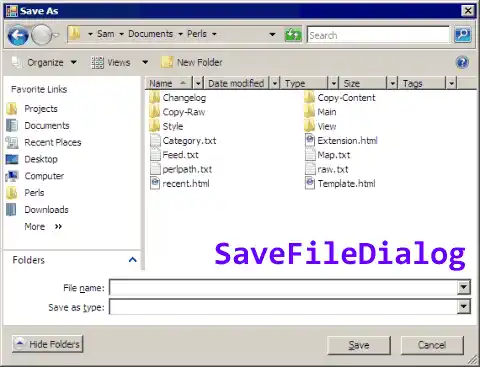
SaveFileDialog. This prompts users when saving files. This control allows the user to set a file name for a specific file. We use the event handling mechanism to add custom code.
Getting started. Please add a SaveFileDialog to your Windows Forms program in Visual Studio. It can be added directly in the UI through the ToolBox.
An example. The Button control will be used to open the SaveFileDialog. Like any dialog, you must call the ShowDialog method to open your SaveFileDialog.
Note To add a click event handler to the SaveFileDialog, double-click on the button in the designer.
Also Double-click on the SaveFileDialog icon in your Visual Studio designer window as well to add the FileOk event handler.
Detail The button1_Click event handler was added, and the saveFileDialog1_FileOk event handler was added.
Info In the button1_Click method, we call the ShowDialog method on the saveFileDialog1 instance.
using System;
using System.ComponentModel;
using System.IO;
using System.Windows.Forms;
namespace WindowsFormsApplication30
{
public partial class Form1 : Form
{
public Form1()
{
InitializeComponent();
}
private void button1_Click(object sender, EventArgs e)
{
// When user clicks button, show the dialog.
saveFileDialog1.ShowDialog();
}
private void saveFileDialog1_FileOk(object sender, CancelEventArgs e)
{
// Get file name.
string name = saveFileDialog1.FileName;
// Write to the file name selected.// ... You can write the text from a TextBox instead of a string literal.
File.WriteAllText(name, "test");
}
}
}
FileOk. Next, in the saveFileDialog1_FileOk event handler, we handle the user pressing the OK button. At this point, the user wants to save the file to the disk.
Info Typically you will want to read the FileName property from the saveFileDialog1 instance.
Then You can use a file writing method to output data to that location. In this example, I write the string "test" to a file.
Tip You could read a property such as textBox1.Text and write the string returned by that.
A summary. When developing interactive Windows Forms programs, the SaveFileDialog is useful. We opened a SaveFileDialog, and then wrote to the selected path.
Dot Net Perls is a collection of tested code examples. Pages are continually updated to stay current, with code correctness a top priority.
Sam Allen is passionate about computer languages. In the past, his work has been recommended by Apple and Microsoft and he has studied computers at a selective university in the United States.
This page was last updated on Sep 28, 2022 (edit).