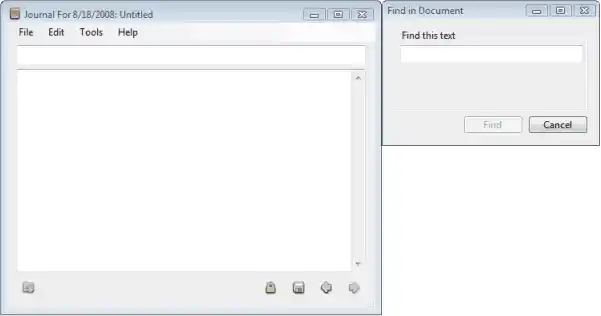
Position windows. A window can be positioned alongside another. It must be positioned automatically. It should appear in the correct place regardless of where the first window is.
Method uses. I have used this method for creating windows like palettes that show next to the side of a window. The example code here is for a reporting window for a move on a game board.
An introduction. Our example will position itself to the bottom. Let us look at some properties we need to use to solve this problem and enable relative positioning on windows.
WorkingArea.Height:
This returns the height of the screen minus the taskbar in pixels.
WorkingArea.Width:
Width of screen, minus the Vista sidebar or anything else.
Height:
This is the height of your window in pixels.
Width:
This is the width of the window in pixels.
Location:
Top left corner of the form in pixels relative to the screen.
X and Y:
Horizontal and vertical coordinates of Point.
Example. Here we adjust the position of the window before it is shown. Look at the Screen.PrimaryScreen WorkingArea.Height and Width properties.
Here We see the approach we will use to position windows like a palette relative to another window. This will position to the bottom.
Info The example shows how to get the sizes of both windows. We must know the positions and sizes of both windows we want to position.
So We must get the size of the working area, meaning the size of the user's desktop minus the taskbar. We use the WorkingArea class for this.
Finally Before we place the form, we need to make sense that our new position makes sense. Then we place the new Form.
/// <summary>/// A Windows Form./// </summary>
public partial class MainWindow : Form
{
/// <summary>/// The Windows Form we want to position./// </summary>
ReporterWindow _reporterWin = new ReporterWindow();
public MainWindow ()
{
InitializeComponent();
}
private void reportMoveToolStripMenuItem_Click(object sender, EventArgs e)
{
// This is an event handler triggered by a menu item (or button).
PositionReporterEdge(); // Position the window.
_reporterWin.Show();
}
/// <summary>/// Position the "Reporter" form next to the current form./// </summary>
private void PositionReporterEdge()
{
int screenHeight = Screen.PrimaryScreen.WorkingArea.Height;
int screenWidth = Screen.PrimaryScreen.WorkingArea.Width;
Point parentPoint = this.Location;
int parentHeight = this.Height;
int parentWidth = this.Width;
int childHeight = _reporterWin.Height;
int childWidth = _reporterWin.Width;
int resultX;
int resultY;
if ((parentPoint.Y + parentHeight + childHeight) > screenHeight)
{
// If we would move off the screen, position near the top.
resultY = parentPoint.Y + 50; // move down 50
resultX = parentPoint.X;
}
else
{
// Position on the edge.
resultY = parentPoint.Y + parentHeight;
resultX = parentPoint.X;
}
// set our child form to the new position
_reporterWin.Location = new Point(resultX, resultY);
}
}
Method notes. Call PositionReporterEdge before showing ReporterWin. The function supports positioning a new window to the bottom, which is a common position for palette windows.
Tip You can add left, right and top if you need them. The method can be modified with additional features.
Also I have used the method for a "Find in this page" window, similar to Microsoft Word's.
FormBorderStyle. I have found that the FormBorderStyle of "FixedToolWindow" looks best for palettes. This will mean that your form will look like a palette window.
Also I have found that a "FixedSingle" style looks good for a "Find and Replace" window.
Summary. We positioned a window on the edge of another window. You can improve user experience with a palette window or a find window, or other types of windows.
Dot Net Perls is a collection of tested code examples. Pages are continually updated to stay current, with code correctness a top priority.
Sam Allen is passionate about computer languages. In the past, his work has been recommended by Apple and Microsoft and he has studied computers at a selective university in the United States.
This page was last updated on Sep 27, 2022 (edit).