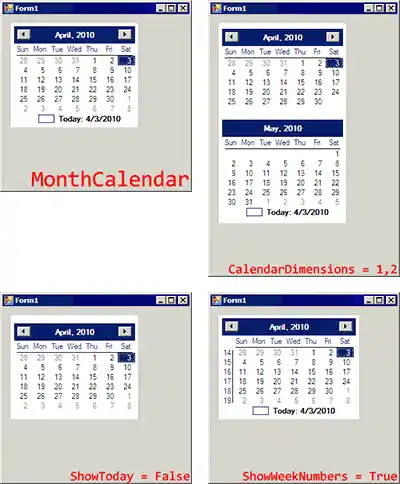
MonthCalendar. This is a selectable calendar widget. On the MonthCalendar, a user can select a day, or a range of days. The user can also scroll through the months.
To get started, you can double-click on the MonthCalendar icon in the Toolbox pane in Visual Studio. This control provides many useful options.
BoldedDates. MonthCalendar has several properties related to bolded dates. In the MonthCalendar, some dates can be bolded to indicate an important event.
Next We look at a code example that demonstrates setting the BoldedDates property.
using System;
using System.Windows.Forms;
namespace WindowsFormsApplication3
{
public partial class Form1 : Form
{
public Form1()
{
InitializeComponent();
// Set the BoldedDates property to a DateTime array.// ... Use array initializer syntax to add tomorrow and two days after.
monthCalendar1.BoldedDates = new DateTime[]
{
DateTime.Today.AddDays(1),
DateTime.Today.AddDays(2),
DateTime.Today.AddDays(4)
};
}
}
}
MaxDate, MinDate. The MonthControl has properties called MaxDate and MinDate—these indicate the maximum and minimum selectable dates. These dates give you a lot of range to select dates.
MinDate: 1/1/1753
MaxDate: 12/31/9998
Color properties. Another set of properties you can edit on the MonthCalendar are the color properties. These allow you to set your control to be in various colors.
SelectionRange, as well as SelectionStart and SelectionEnd, allow you to get the dates that are selected in the form of two DateTime values. These are the start and end dates.
Also You can assign to all of these properties. This will change the currently selected square on the MonthCalendar.
using System;
using System.Windows.Forms;
namespace WindowsFormsApplication3
{
public partial class Form1 : Form
{
public Form1()
{
InitializeComponent();
// You can acquire the range using this property accessor.
SelectionRange range = monthCalendar1.SelectionRange;
DateTime start = range.Start;
DateTime end = range.End;
// Alternatively, you can use the SelectionStart and End properties.
DateTime startB = monthCalendar1.SelectionStart;
DateTime endB = monthCalendar1.SelectionEnd;
}
}
}
DateChanged. The MonthCalendar provides an event-driven user interface and you can provide and hook up event handlers to execute code on user actions.
And The DateChanged event allows you to detect whenever the user changes the date to something else.
Note When this event handler executes, you can detect the SelectionRange. You can also access the properties on the DateRangeEventArgs.
using System;
using System.Windows.Forms;
namespace WindowsFormsApplication3
{
public partial class Form1 : Form
{
public Form1()
{
InitializeComponent();
}
private void monthCalendar1_DateChanged(object sender, DateRangeEventArgs e)
{
// The user changed the current selection.
MessageBox.Show("DateChanged: " + monthCalendar1.SelectionRange.ToString());
}
}
}
ShowToday. There are 2 properties that allow you to change whether and how the "Today" text at the bottom of the calendar appears—ShowToday, and ShowTodayCircle.
Detail This is by default set to true. If you set it to false, it will not be present at the bottom of the calendar.
Detail The ShowTodayCircle property adjusts the visibility of the box on the left of the "Today" display.
A summary. The MonthCalendar control in Windows Forms provides a fast and easy-to-use calendar. It is used to allow a user to indicate a date.
Dot Net Perls is a collection of tested code examples. Pages are continually updated to stay current, with code correctness a top priority.
Sam Allen is passionate about computer languages. In the past, his work has been recommended by Apple and Microsoft and he has studied computers at a selective university in the United States.
This page was last updated on Sep 28, 2022 (edit).