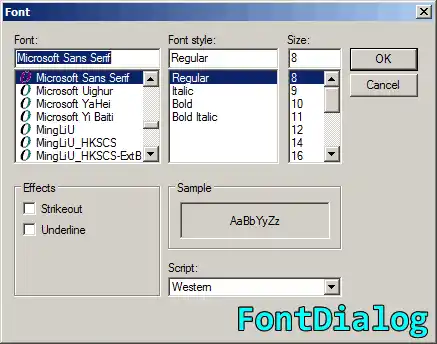
FontDialog. This Windows Forms control presents a font selection dialog box. With it, we can quickly give users the ability to select their favorite fonts.
First, add a FontDialog instance, and also a Button and a TextBox to an empty Windows Form. Then, double-click on the Button to insert the button1_Click event handler.
Here In the example code for button1_Click, we call the ShowDialog method on the FontDialog instance.
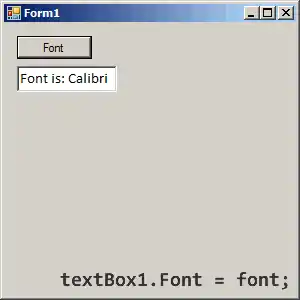
Info The Button is linked to the button1_Click event handler. The TextBox is then changed to have the Font that was specified in the FontDialog.
using System;
using System.Drawing;
using System.Windows.Forms;
namespace WindowsFormsApplication1
{
public partial class Form1 : Form
{
public Form1()
{
InitializeComponent();
}
private void button1_Click(object sender, EventArgs e)
{
// Show the dialog.
DialogResult result = fontDialog1.ShowDialog();
// See if OK was pressed.
if (result == DialogResult.OK)
{
// Get Font.
Font font = fontDialog1.Font;
// Set TextBox properties.
this.textBox1.Text = string.Format("Font: {0}", font.Name);
this.textBox1.Font = font;
}
}
}
}
FixedPitchOnly. What does the FixedPitchOnly property on the FontDialog do? This changes the list of fonts in the dialog so that only the monospace ("fixed") ones are shown.
ShowColor. You can also change the ShowColor property to true—this adds a small color chooser to the FontDialog. Another option you have is the ColorDialog control, which offers more options.
Tip The ShowEffects property can be set to True or False. If you set it to False, the left-hand control group will disappear.
Tip 2 If you disable ShowEffects, the color chooser drop-down will also be hidden.
Summary. The FontDialog control provides a complete font chooser. Because the dialog is built into Windows, its appearance may change depending on the version of Windows.
Dot Net Perls is a collection of tested code examples. Pages are continually updated to stay current, with code correctness a top priority.
Sam Allen is passionate about computer languages. In the past, his work has been recommended by Apple and Microsoft and he has studied computers at a selective university in the United States.
This page was last updated on Oct 13, 2022 (edit link).