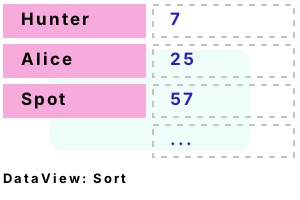
DataView. This C# class selectively filters and sorts DataTable rows. Part of System.Data, DataView is ideal for sorting data. We use the data in a DataTable by sorting it with DataView.
It is possible to filter a DataView, which allows you to exclude rows. Certain rows matching a condition can be omitted. The 2 properties we use here are RowFilter, and RowStateFilter.
Sort example. We use DataView to sort a column on a DataTable. The GetTable method returns a table with 2 columns. Before we can use DataView, we must have a complete table.
Detail In Main() the DefaultView is accessed. DefaultView is a property of type DataView—this means it has a Sort property.
Detail We assign the Sort property to a string that matches one of the column names ("Weight").
Detail The first loop displays all fields in the DataTable, sorted by Weight. Weight is ordered in ascending (low to high) order.
Then The DataView is resorted on Name, and then that view is displayed. The Name string is ordered in ascending ASCII sort order.
using System;
using System.Data;
class Program
{
static void Main()
{
//// Specify the column to sort on.//
DataTable table = GetTable();
table.DefaultView.Sort = "Weight";
//// Display all records in the view.//
DataView view = table.DefaultView;
Console.WriteLine("=== Sorted by weight ===");
for (int i = 0; i < view.Count; i++)
{
Console.WriteLine("{0}, {1}", view[i][0], view[i][1]);
}
//// Now sort on the Name.//
view.Sort = "Name";
//// Display all records in the view.//
Console.WriteLine("=== Sorted by name ===");
for (int i = 0; i < view.Count; i++)
{
Console.WriteLine("{0}, {1}", view[i][0], view[i][1]);
}
}
static DataTable GetTable()
{
//// Here we create a DataTable with 2 columns.//
DataTable table = new DataTable();
table.Columns.Add("Weight", typeof(int));
table.Columns.Add("Name", typeof(string));
//// Here we add unsorted data to the DataTable and return.//
table.Rows.Add(57, "Spot");
table.Rows.Add(130, "Rover");
table.Rows.Add(92, "Fred");
table.Rows.Add(25, "Alice");
table.Rows.Add(7, "Hunter");
return table;
}
}=== Sorted by weight ===
7, Hunter
25, Alice
57, Spot
92, Fred
130, Rover
=== Sorted by name ===
25, Alice
92, Fred
7, Hunter
130, Rover
57, Spot
Review, types. DataTable stores the physical data—the DataView is only a view of that data. You cannot easily sort a DataTable without a DataView reference.
Summary. We saw an example of using DataView to sort rows in a DataTable. It allows you to sort your data before using it in your program, and before putting it into a database.
Dot Net Perls is a collection of tested code examples. Pages are continually updated to stay current, with code correctness a top priority.
Sam Allen is passionate about computer languages. In the past, his work has been recommended by Apple and Microsoft and he has studied computers at a selective university in the United States.
This page was last updated on Apr 26, 2023 (simplify).