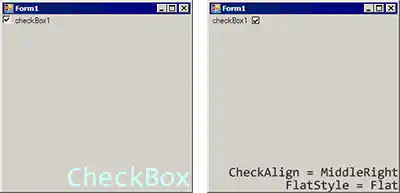
CheckBox. This control has 2 or 3 states. It provides a way for an option to be selected and deselected independently of other options.
Getting started. Add a CheckBox control to your Windows Form in the designer view in Visual Studio. To use the CheckBox, add a Load event handler on the form.
using System;
using System.Windows.Forms;
namespace WindowsFormsApplication4
{
public partial class Form1 : Form
{
public Form1()
{
InitializeComponent();
// Acquire the state of the CheckBox.
CheckState state = checkBox1.CheckState;
// Demonstrate how the CheckBox can be switched upon.
switch (state)
{
case CheckState.Checked:
case CheckState.Indeterminate:
case CheckState.Unchecked:
{
MessageBox.Show(state.ToString());
break;
}
}
// Tell if the box is checked.
MessageBox.Show(checkBox1.Checked.ToString());
}
}
}
CheckChanged. Typically, the CheckBox control is used alongside other controls. The CheckBox state is read when a user performs an action on another control, such as a button.
However The most useful event is probably CheckChanged—this event fires when the user clicks or changes the CheckBox.
And You can add the CheckChanged event handler by clicking on the lightning bolt and double-clicking on the CheckChanged name.
Summary. The CheckBox is useful control in Windows Forms. But it is not often a major focus of applications. It is instead a small, supporting control used with other controls.
Dot Net Perls is a collection of tested code examples. Pages are continually updated to stay current, with code correctness a top priority.
Sam Allen is passionate about computer languages. In the past, his work has been recommended by Apple and Microsoft and he has studied computers at a selective university in the United States.
This page was last updated on Oct 9, 2022 (edit link).